Compact Disk (CD) is cheaper & a professional approach to sale data across network. Whether we sale Videos, Audios, Software’s or Games it can be easily stored & shared using a Compact Disk. Basically Compact Disks contains 2 categories of data. First category is for Video & Audio & the Second category is Data. Under Data category we can store Software’s, Games, Documents or image files. While writing a CD, DVD or a DATA disk for a customer, to make our business much more customer friendly we want to create the disk as an Autorun disk. It means while the customer will put the disk in his/her CD-ROM the disk need to play automatically for the file to start the operation. Autorun CD is a facility provided by Windows Operating System. Today about 90% home users are using Windows in their personal PC. So let us know the Steps how to create an Autorun Disk for Windows Operating System.
To create an Autorun disk including data file we need an additional inf file. inf file extension stands for “Setup Information file”. An inf file can be created using Notepad only. To demonstrate how to create an Autorun disk here I am taking an example to create a setup disk for “Mozilla FireFox”. During you create an Autorun disk it’s more better if you can add an ico file for the related Setup installer. Your ico file can be the logo of the software or video file you are going to write on the disk. Here I used FireFox ico file to create an example.
To create an FireFox installer disk only the Downloaded FireFox Setup file is enough. But her our intention to create an Autorun disk for FireFox installer. To do this including Setup file we need to create an inf & an ico file. Open Notepad from Windows > Accessories. To create the autorun inf file in Notepad write the following lines of Codes.
Sample Autorun inf File
[autorun]
open=Setup.exe
icon=FireFox.ico
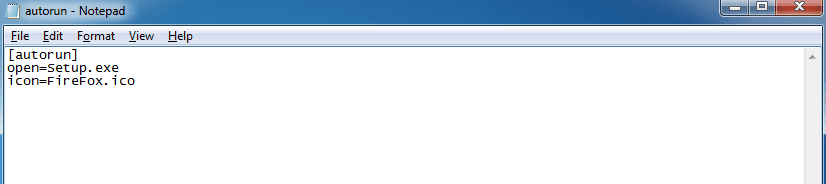
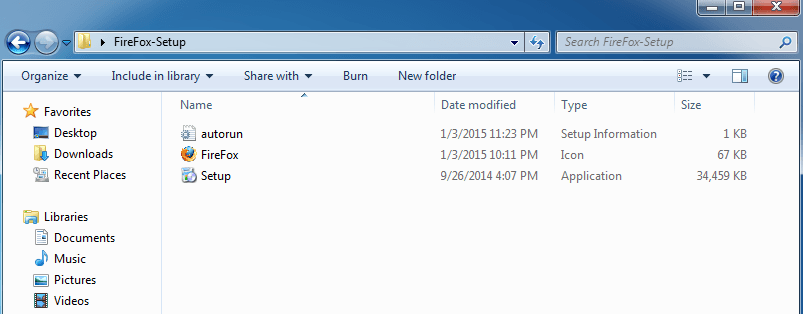
Then save the file as an autorun.inf file. To do this while saving the file using Notepad save option in save dialog put the file name with double quotes like “autorun.inf”. For ico file you can download it from net. Now let us go to write the disk. Create a folder named with “FireFox-Setup”. Copy all the files into this as shown in below screen shot.
There are several CD writing software’s are available in market. Choose which one is more friendly to you. Here I am using Nero. You can download Nero from http://www.nero.com. Once you have the downloaded version of Nero burner, Install this & Open Nero. From right side “File Browser” panel select the folder “FireFox-Setup”. Drag all three files to the left “Disk Content” panel. Depending upon the name of ico file rename the Disk label from New to FireFox.
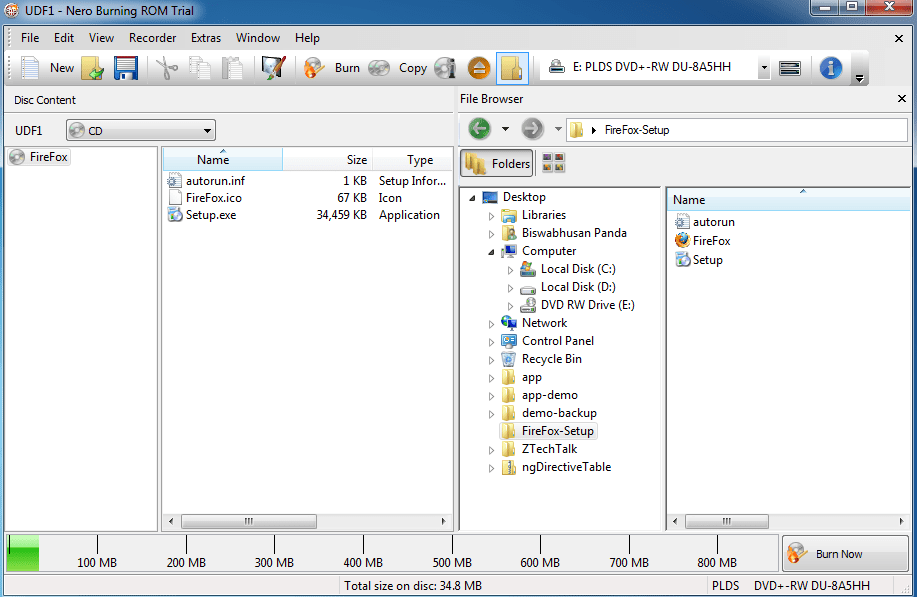
Now we are ready to write an Autorun FireFox Setup Disk. Open the CD-ROM insert a blank Disk & Then Click on the button “Burn Now”. Wait for few minutes. Once the burning process is complete. We have our Autorun FireFox Setup Disk.
Understanding Autorun.inf
An Autorun.inf file is a simple text configuration file used to define how a CD, DVD, or USB drive behaves when inserted into a computer. It can automatically launch an application, display a custom icon, or execute specific commands upon insertion. While modern versions of Windows have limited Autorun functionality due to security concerns, the file remains useful for customizing disc behavior in controlled environments.
Why use an Autorun.inf File?
An Autorun.inf file is a simple yet powerful configuration file used primarily on Windows operating systems to define how a CD, DVD, or USB drive behaves when inserted into a computer. This file enables automatic program execution, custom icons, and user guidance features, making it an essential tool for both personal and professional use. Understanding its benefits can help users enhance functionality, improve user experience, and maintain a professional presentation of their media.
Automatic Program Execution
One of the primary reasons to use an Autorun.inf file is to enable automatic program execution when a storage device is connected to a computer. This feature is particularly useful for software distribution, installation media, or promotional content. By specifying an executable file in the Autorun.inf, users can ensure that a specific program launches immediately upon insertion, eliminating the need for manual navigation.
For example, software developers often include an Autorun.inf file on installation discs to start the setup process automatically. This reduces user effort and ensures a seamless installation experience. Similarly, businesses distributing marketing materials on USB drives can use Autorun.inf to launch a presentation or promotional video without requiring the user to locate and open the file manually.
However, it is important to note that modern versions of Windows, particularly Windows 10 and 11, have stricter security policies regarding Autorun.inf files. While they may still work in some cases, users may need to adjust system settings or manually confirm execution due to security restrictions designed to prevent malware from exploiting this feature.
Custom Icons for Better Identification
Another significant advantage of using an Autorun.inf file is the ability to assign a custom icon to the inserted media. By default, Windows displays a generic icon for removable drives or optical discs, making it difficult to distinguish between multiple devices. A custom icon enhances visual identification, improving user experience and professionalism.
To implement this, the Autorun.inf file includes a directive that points to an icon file (ICO format). This small customization can be particularly beneficial for businesses distributing branded USB drives or CDs, as it reinforces brand identity. For instance, a company logo can be set as the drive icon, ensuring consistency with corporate branding.
Additionally, custom icons help users quickly recognize the purpose of the inserted media. A training DVD with a book icon or a music CD with a note symbol provides immediate visual cues, reducing confusion and improving accessibility.
User Guidance and Enhanced Interaction
Autorun.inf files can also include labels and action prompts, guiding users on what to do next. The “label” parameter allows the media to display a custom name instead of the default drive letter or volume name. This is particularly useful for organizing multiple drives or providing clear instructions.
Moreover, the “action” parameter can define a specific command or message that appears in the AutoPlay dialog, prompting the user to take action. For example, an Autorun.inf file can be configured to display “Run Setup” or “View Presentation” as an option when the media is inserted. This ensures users know exactly what to expect and how to proceed.
This feature is especially valuable in professional settings, where clear instructions minimize errors and improve efficiency. Training materials, product demos, and corporate presentations benefit from structured user interaction, reducing support requests and improving overall satisfaction.
Professional Presentation and Branding
A well-configured Autorun.inf file contributes to a polished and professional presentation. Whether for business, education, or personal use, automated and branded interactions create a more refined experience. Companies distributing software or promotional materials can leverage Autorun.inf to maintain consistency with their branding, reinforcing trust and credibility.
For instance, a USB drive containing a portfolio or business proposal that auto-launches a presentation with a custom icon and label appears more professional than a standard drive requiring manual navigation. Similarly, event organizers distributing conference materials on CDs can use Autorun.inf to ensure attendees receive a seamless and branded experience.
Security Considerations
While Autorun.inf files offer numerous benefits, they also pose potential security risks if misused. Malicious actors have historically exploited Autorun functionality to distribute malware by automatically executing harmful programs when a device is connected. As a result, modern Windows versions restrict Autorun.inf execution by default, requiring user approval.
To mitigate risks, users should only use Autorun.inf files from trusted sources. Additionally, disabling Autorun entirely in high-security environments may be advisable. However, for legitimate uses, digital signatures and proper file validation can help ensure safe execution.
Conclusion
Creating an Autorun.inf file before burning a disc ensures a professional and user-friendly experience. By following the correct syntax and testing thoroughly, users can automate disc interactions while maintaining compatibility and security. Always verify functionality in the target environment to avoid unexpected issues.