


WordPress powers over 40% of all websites on the internet, making it the most popular content management system (CMS) in the world. One of the key strengths of WordPress is its extensibility, allowing developers to create custom plugins that enhance functionality beyond the core features. WordPress Custom plugin Development Tutorial enables businesses and individuals to tailor their websites to specific needs, improving performance, security, and user experience.
Sample WordPress Plugin
The i20 Sidebar Widgets plugin is a WordPress extension designed to simplify the process of adding, managing, and customizing widgets in your website’s sidebar. Widgets are small blocks that perform specific functions, such as displaying recent posts, social media feeds, or custom HTML content. The i20 Sidebar Widgets plugin enhances WordPress’s default widget functionality by offering additional customization options, drag-and-drop ease, and improved control over widget placement. These Widgets are versatile and user-friendly solution for enhancing WordPress websites with dynamic, customizable sidebars. Whether you’re a beginner or an advanced user, its intuitive interface and powerful features make it an excellent choice for improving site navigation and engagement. By following best practices and leveraging its conditional display options, you can create a more personalized and efficient browsing experience for your audience.
How to Install and Configure i20 Sidebar Widgets
Step 1: Installation
1. Log in to your WordPress admin dashboard.
2. Navigate to Plugins > Add New.
3. Search for i20 Sidebar Widgets.
4. Click Install Now and then Activate.
Step 2: Creating a New Sidebar
1. Go to Appearance > Widgets.
2. Locate the i20 Sidebar Widgets section.
3. Click Add New Sidebar, provide a name, and configure display conditions if needed.
Step 3: Adding Widgets
1. Drag desired widgets from the available options into your newly created sidebar.
2. Configure widget settings (e.g., titles, content, visibility rules).
3. Save changes.
Step 4: Assigning Sidebars to Pages
1. Edit a page or post where you want the sidebar to appear.
2. In the editor, locate the Sidebar Settings meta box.
3. Select the desired sidebar from the dropdown menu.
4. Update or publish the page.
WordPress Custom plugin Development Tutorial
To develop a Custom Shortcode based WordPress plugin first you need to prepare the folder structure as shown in below.
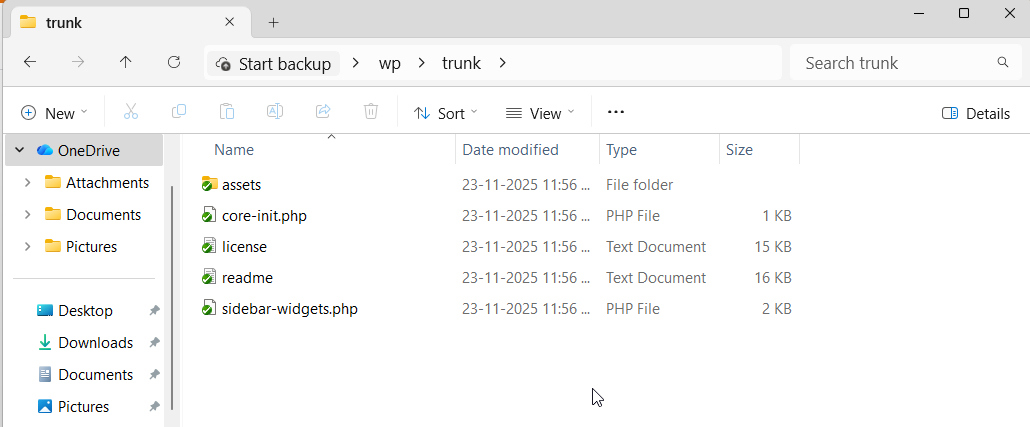
Here core-init.php you need to define file path (like JS or CSS files). Then using a public function make it accessible from sidebar-widgets.php.
if (!defined('WPINC')) { die; }
define('ITSW_CORE_INC',dirname( __FILE__ ).'/assets/includes/');
define('ITSW_CORE_CSS',plugins_url('assets/css/', __FILE__ ));
define('ITSW_CORE_JS',plugins_url('assets/js/', __FILE__ ));

function itsw_register_core_css(){
wp_enqueue_style('itsw-core', ITSW_CORE_CSS . 'jhp_main.css',null,time(),'all');
};
add_action('wp_enqueue_scripts', 'itsw_register_core_css');
add_action('admin_enqueue_scripts', 'itsw_register_core_css');
/*
*  Register JS/Jquery Ready
*/
function itsw_register_core_js(){
// Register Core Plugin JS
wp_enqueue_script('itsw-core', ITSW_CORE_JS . 'jhp-core.js',null,time(),true);
};
add_action('wp_enqueue_scripts', 'itsw_register_core_js');
add_action('admin_enqueue_scripts', 'itsw_register_core_js');
/*
*  Includes
*/
// Load the Shortcodes
if ( file_exists(ITSW_CORE_INC . 'jhp-shortcodes.php')) {
    require_once ITSW_CORE_INC . 'jhp-shortcodes.php';
}
As per WordPress assets folder is mandatory. Where you can Store CSS and JS files.
To Store wp global variables use sidebar-widgets.php file as shown in the Folder structure. Sample Codes shared below.
if (!defined('WPINC')) { die; }

// Let's Initialize Everything
if (file_exists(plugin_dir_path( __FILE__ ) . 'core-init.php')) {
require_once(plugin_dir_path( __FILE__ ) . 'core-init.php');

if (get_option('itsw_how_many_records') === false ) {
    update_option('itsw_how_many_records', 20);
}

if (get_option('itsw_height_of_i20_sidebar') === false ) {
    update_option('itsw_height_of_i20_sidebar', 520);
}

if (get_option('itsw_dropdown_border') === false ) {
    update_option('itsw_dropdown_border', 1);
}

if (get_option('itsw_dropdown_image') === false ) {
    update_option('itsw_dropdown_image', 1);
}

ob_end_clean();
}
Here I am using ob_end_clean(); for removing unwanted white-spaces. In this kinds of variables itsw_how_many_records I am storing records count and in itsw_height_of_i20_sidebar storing height in pixels.
/assets/includes/jhp-shortcodes.php this is the main file which used to place HTML and functionalities. Here you need to create your shortcode function.
add_action( 'init', 'itsw_register_shortcodes');

if (!function_exists('itsw_register_shortcodes')) {
    function itsw_register_shortcodes(){
        // Registered Shortcodes
        add_shortcode ('i20_Sidebar_Widgets', 'itsw_plugin_form_display');
    };
}
Why Develop a Custom Plugin?
1. Unique Functionality – Pre-built plugins may not always meet specific business needs. A custom plugin ensures that the required features are implemented exactly as needed.
2. Performance Optimization – Generic plugins often include unnecessary code, slowing down a website. Custom plugins are lightweight and optimized for efficiency.
3. Security – Third-party plugins can pose security risks if not regularly updated. Custom plugins reduce vulnerabilities by limiting external dependencies.
4. Scalability – As a business grows, a custom plugin can be easily modified to accommodate new features without relying on third-party updates.
5. Integration – Custom plugins can seamlessly integrate with other systems, APIs, or databases, providing a unified solution.
Prerequisites for Plugin Development
Before developing a WordPress plugin, a developer should have: Basic knowledge of PHP, HTML, CSS, and JavaScript. Familiarity with WordPress core functions and hooks (actions and filters). A local development environment (e.g., XAMPP, Local by Flywheel, or Docker). A code editor (e.g., VS Code, Sublime Text, or PHPStorm).
The Advantages of Using WordPress Plugins
WordPress is one of the most popular content management systems (CMS) in the world, powering over 40% of all websites on the internet. One of the key reasons for its widespread adoption is its flexibility, largely due to the extensive library of plugins available. WordPress plugins are software components that add specific features and functionalities to a website without requiring users to write custom code. These plugins enhance the website’s performance, security, design, and user experience, making them indispensable for both beginners and experienced developers.
1. Easy to Install and Use
One of the biggest advantages of WordPress plugins is their ease of installation and use. Unlike traditional software that requires complex coding knowledge, plugins can be installed with just a few clicks from the WordPress dashboard. Users can browse the official WordPress Plugin Directory, select a plugin, and activate it immediately. Many plugins also come with intuitive interfaces, allowing users to configure settings without technical expertise. This simplicity makes WordPress accessible to non-developers while still offering powerful customization options.
2. Extends Website Functionality
WordPress plugins allow users to add almost any feature they need without writing a single line of code. Whether it’s adding a contact form, integrating an e-commerce store, improving SEO, or enabling multilingual support, there’s likely a plugin available for the task. For example, WooCommerce transforms a standard WordPress site into a fully functional online store, while Yoast SEO helps optimize content for search engines. This extensibility ensures that WordPress can adapt to various business needs, from blogs to corporate websites.
3. Saves Time and Development Costs
Developing custom features from scratch can be time-consuming and expensive. Plugins eliminate the need for hiring developers for every small functionality, significantly reducing costs. Instead of spending weeks coding, users can install a plugin in minutes and have the desired feature up and running immediately. This is particularly beneficial for small businesses and startups with limited budgets, allowing them to compete with larger enterprises without heavy investments in web development.
4. Enhances Website Performance
Performance optimization is crucial for user experience and search engine rankings. Plugins like WP Rocket and W3 Total Cache improve website speed by caching content, compressing images, and minimizing CSS and JavaScript files. Faster loading times reduce bounce rates and improve engagement, ensuring visitors stay longer on the site. Additionally, performance optimization plugins help websites rank higher on search engines, as page speed is a key ranking factor for Google.
5. Improves Security
Website security is a major concern, especially with increasing cyber threats. WordPress plugins such as Wordfence and Sucuri provide robust security features, including malware scanning, firewall protection, and brute-force attack prevention. These plugins regularly update their defenses to counter new threats, ensuring websites remain secure. For businesses handling sensitive data, security plugins are essential for maintaining trust and compliance with data protection regulations.
Conclusion
This WordPress Custom plugin Development Tutorial empowers developers to create tailored solutions that enhance website functionality, security, and performance. By following best practices in coding, security, and optimization, a well-built plugin can provide long-term value without relying on third-party solutions. Whether for a simple shortcode or a complex API integration, mastering plugin development unlocks the full potential of WordPress as a flexible and scalable platform.