JSON (JavaScript Object Notation) is a platform independent data inter-exchange technology. To bulid a JSON file we follow XML formatting. JavaScript program can easily convert JSON data into JavaScript objects. Like a database using JSON we can store and retrieve data with multiple fields. In this demo app I am fetching a well formatted JSON file using PHP file_get_contents method. Then dynamically using html table, tr and td presenting those JSON records in a HTML Table.
Converting Data from JSON to HTML Tables
JSON is a lightweight data interchange format widely used for transmitting data between servers and web applications. HTML tables, on the other hand, provide a structured way to display data in rows and columns on a webpage. Converting JSON data into an HTML table is a common task in web development, enabling developers to present data in a readable and organized manner. This article explores various methods to achieve this conversion, including manual JavaScript approaches, using libraries, and leveraging modern frameworks.
To start with first let me create a valid JSON file. In below JSON file for each node we have 4 fields empName, designation, company and mob. To present data using JSON we follow key, value pair. Curly braces hold objects while Square brackets hold arrays.
emp_records.json
{"employees":
[
{
"empName": "Swati Nanda",
"designation": "Project Manager",
"company": "InfoSys",
"mob": "9092353322"
},
{
"empName": "Pravat Mishra",
"designation": "English Trainer",
"company": "FM College",
"mob": "7847324432"
},
{
"empName": "Divya Singh",
"designation": "Sr. Content Writer",
"company": "Wipro",
"mob": "9625477893"
},
{
"empName": "Baby Roy",
"designation": "Graphic Engineer",
"company": "Tech Mahindra",
"mob": "9096266548"
},
{
"empName": "Satyabrata Panda",
"designation": "Sr. Software Engineer",
"company": "Capgemini",
"mob": "5567748833"
},
{
"empName": "Sonam Singh",
"designation": "Graphic Engineer",
"company": "TCS",
"mob": "8260272137"
},
{
"empName": "Subash Roy",
"designation": "Jr. Software Engineer",
"company": "InfoSys BPO",
"mob": "5237748822"
},
{
"empName": "Mohini Mohapatra",
"designation": "UI/UX Engineer",
"company": "Synechron",
"mob": "8892978436"
},
{
"empName": "Supriti Kabi",
"designation": "Sr. HTML Developer",
"company": "InfoSys BPO",
"mob": "6667748877"
}
]
}
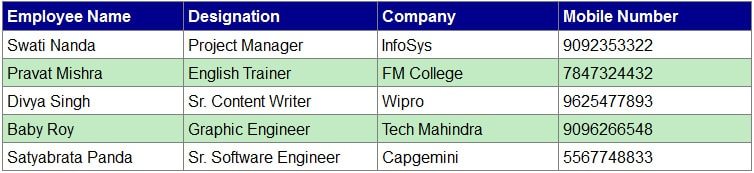
Now create your PHP file with the below lines of Code.
JSON-to-HTML.php
/*Fetching JSON file content using php file_get_contents method*/
$str_data = file_get_contents("emp-records.json");
$data = json_decode($str_data, true);

/*Initializing temp variable to design table dynamically*/
$temp = "<table>";

/*Defining table Column headers depending upon JSON records*/
$temp .= "<tr><th>Employee Name</th>";
$temp .= "<th>Designation</th>";
$temp .= "<th>Company</th>";
$temp .= "<th>Mobile Number</th></tr>";

/*Dynamically generating rows & columns*/
for($i = 0; $i < sizeof($data["employees"]); $i++)
{
$temp .= "<tr>";
$temp .= "<td>" . $data["employees"][$i]["empName"] . "</td>";
$temp .= "<td>" . $data["employees"][$i]["designation"] . "</td>";
$temp .= "<td>" . $data["employees"][$i]["company"] . "</td>";
$temp .= "<td>" . $data["employees"][$i]["mob"] . "</td>";
$temp .= "</tr>";
}

/*End tag of table*/
$temp .= "</table>";

/*Printing temp variable which holds table*/
echo $temp;
Using the above PHP codes first I am reading the JSON file using file_get_contents() method. Then after using json_decode() method I am decoding the JSON data and storing in a variable like an Array. Temp is the variable which I used to generate dynamic html for table. Using string concatenation I am appending html and $data values to $temp. Finally using using echo I am printing the value of $temp.
Inside the table to Create dynamic rows I am using a for loop over total records count. To get total record count here I am using sizeof() method against $data[“employees”] array. Then depending upon JSON records I am binding respective values to td’s for each row.
tblClasses.css
/*Style for Table*/
table, th , td {
border: 1px solid grey;
border-collapse: collapse;
padding: 4px;
font-family: arial;
}
/*Style for Table Header*/
th {
background: darkblue;
color: white;
text-align: left;
}
/*Style for Alternate Rows*/
table tr:nth-child(odd) {
background-color: #C2EBC3;
}
table tr:nth-child(even) {
background-color: #FFFFFF;
}
Without the above CSS code this demo app will run. But to make your HTML table beautiful this CSS classes can help. Just copy paste these classes under style tag. This will give you a table as shown in the above figure. You must noticed here I am using tr:nth-child(odd) and tr:nth-child(even) with different background colors. This CSS selector helps to distigush alternate rows with different color codes.
Best Practices
improper usage can lead to inefficiencies, security vulnerabilities, and poor user experiences. By following best practices, developers can ensure JSON is used effectively, optimizing performance, enhancing accessibility, and maintaining data integrity.
1. Validate JSON Data
Ensuring JSON data is correctly structured and free from errors is crucial for application stability.
Use Schema Validation JSON Schema provides a standardized way to define the structure of JSON data. By validating incoming JSON against a schema, developers can catch malformed data early. Tools like AJV (Another JSON Schema Validator) for JavaScript or jsonschema for Python help enforce data integrity.
Sanitize Inputs Malicious or malformed JSON can lead to security risks such as injection attacks. Always sanitize inputs before parsing. Libraries like DOMPurify for browser-based applications or custom validation logic can prevent unsafe data from being processed.
Handle Parsing Errors Gracefully Use `try-catch` blocks when parsing JSON to manage errors without crashing the application. For example:
javascript try { const data = JSON.parse(jsonString); } catch (error) { console.error(“Invalid JSON format:”, error); }
2. Optimize Performance
Efficient JSON usage reduces latency and improves application responsiveness.
Minify JSON Removing unnecessary whitespace and line breaks reduces file size, speeding up transmission. Tools like JSON.stringify() with replacer functions or online minifiers can help.
Use Compression For large JSON payloads, enable Gzip or Brotli compression on the server to minimize bandwidth usage. Most web servers (e.g., Nginx, Apache) support compression out of the box.
Lazy Load Large Datasets Instead of loading entire JSON files at once, implement pagination or streaming for large datasets. For example, Node.js streams can process JSON data in chunks:
javascript const fs = require(‘fs’); const stream = fs.createReadStream(‘large-data.json’); stream.on(‘data’, (chunk) => processChunk));
Cache JSON Responses Leverage browser caching (`Cache-Control` headers) or server-side caching (Redis, Memcached) to avoid redundant JSON fetches.
3. Enhance Accessibility
JSON should be structured to support assistive technologies and diverse user needs.
Use Semantic Keys Choose descriptive key names that convey meaning. For example:
json { “user”: { “name”: “John Doe”, “email”: “john@example.com” } }
Instead of:
json { “u”: { “n”: “John Doe”, “e”: “john@example.com” } }
Support Localization Store multilingual content in a structured way for easy translation:
json { “greeting”: { “en”: “Hello”, “es”: “Hola”, “fr”: “Bonjour” } }
Provide Alternative Text for Media When JSON includes media references, include `altText` for screen readers:
json { “image”: { “url”: “profile.jpg”, “altText”: “Profile picture of John Doe” } }
4. Responsive Design with JSON
JSON can dynamically adapt to different devices and screen sizes.
Serve Conditional Data Return only necessary fields based on device type. For example, mobile clients may require fewer data points than desktop:
json { “product”: { “id”: 123, “name”: “Smartphone”, “price”: 599, “mobile”: { “thumbnail”: “phone-sm.jpg” }, “desktop”: { “gallery”: [“phone-1.jpg”, “phone-2.jpg”] } } }
Use Media Queries with JSON Frontend frameworks can conditionally render JSON data based on screen size:
javascript const responsiveData = window.innerWidth < 768 ? mobileData : desktopData; Optimize for Low-Bandwidth Users Provide fallback JSON structures with reduced detail for slow connections: json { "lowBandwidthMode": true, "essentialData": { "title": "Basic Content", "summary": "Simplified version for slow connections" } }
Conclusion
Converting JSON to HTML tables is a fundamental task in web development, facilitating the display of structured data on webpages. Whether using vanilla JavaScript, libraries, or frameworks, developers can choose the method that best suits their project requirements. By following best practices, the resulting tables will be efficient, accessible, and user-friendly.